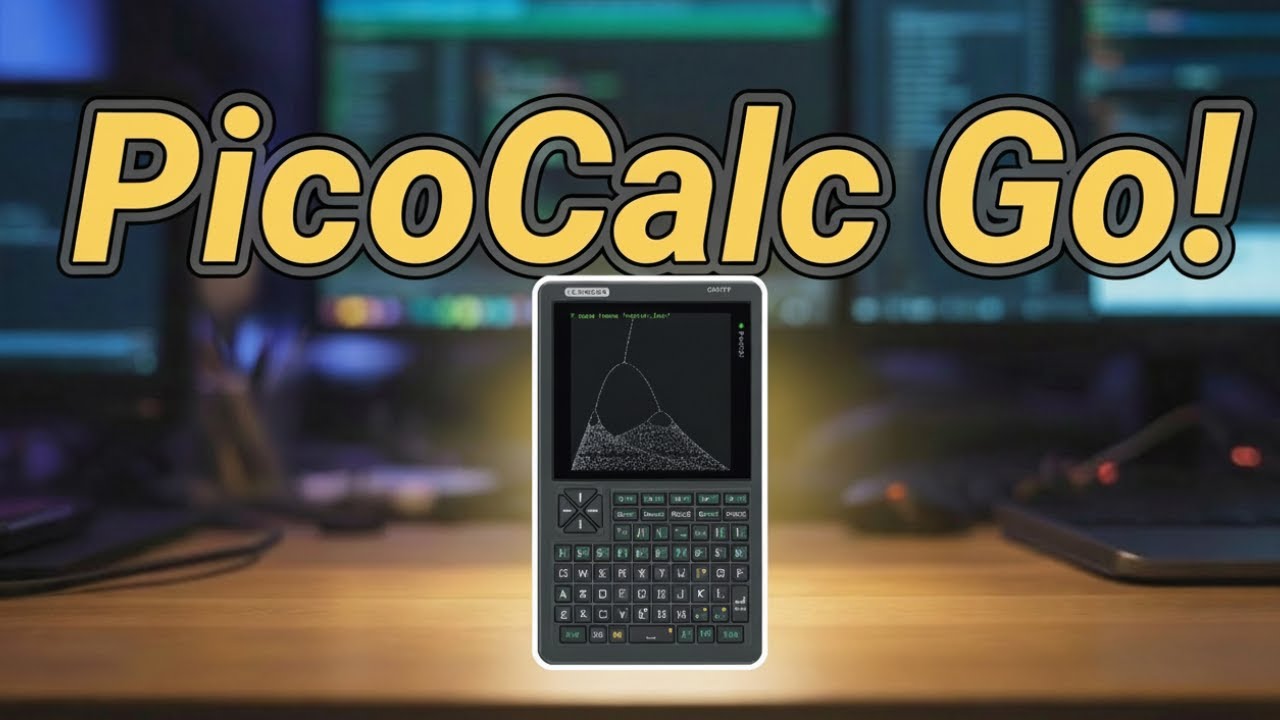
Hello, I’ve been experimenting with TinyGo on the PicoCalc and am sharing my work for those who would like to get started quickly.
I created a github page for a “hello world” project which just draws characters to the screen. It’s intended to be a starting point for other projects: https://github.com/mattwach/tinygo_picocalc
I also implemented a programmable RPN calculator in TinyGo that transforms the PicoCalc into a calculator similar to my classic favorite: the HP48 (in spirit as it’s not an emulator): https://github.com/mattwach/rpngo
Very well done video, jblanked!
Thank you very much, it helped me get started with Go, TinyGo and VS Code, all in one go
Just one small thing worth mentioning for others trying this:
VS Code may show a couple of errors related to machine, but they are not caused by the code or the build itself. They come from the language server not fully understanding TinyGo projects, and can safely be ignored, as I learned.
I only realized this after spending quite some time trying to get rid of them — and then noticed that the video shows the same warnings as well
tinygo_picocalc was my first Go/TinyGo project, and rpngo my second — also my first projects using VS Code. I managed to get both running (with a little help from ChatGPT ).
Just in case it helps others: I’m running this on a Pico 2 W, and it works perfectly fine (I saw the display issue mentioned on GitHub, but didn’t run into this).
In VS Code, I simply navigated to:
\bin\tinygo\picocalc
Then I changed the target in the Makefile to:
pico2
After that, I unplugged the PicoCalc, plugged it back in while holding BOOTSEL (I use a tiny hex screwdriver through the case), and ran:
make flash
(I had to install make first — discovered Scoop along the way.)
Everything works great now. I’m currently playing around with RPN and exploring the examples.
Thanks again for a very fun afternoon/evening!
Lovely! Will give this a try. As mentioned, I got it to work from the Go source code. But with one little exception - the littlefs acts up, and the program reports error in the file system when I try to load a rpn example. So maybe it works with the u2f. thanks
Well, same problem with the u2f. Everything works fine except for file operations. I reread the user manual, found to ‘YES’ format the file system, did that, reloaded the u2f, still no luck. Do I have to YES format the fs after every reload of the u2f? Is there a way to run the examples, that come with the image? Thanks.
I found that tinyfs works better with the pico than the pico2 for some reason. I got both to work but the pico2 started returning errors after a few commands.
You should only need to format once (sometimes again after loading code as the filesystem is set to use the flash memory on the pico itself). You can try this:
‘YES’ format
‘ls’ sh
‘hello’ ‘hello.txt’ save
‘ls’ sh
‘cat hello.txt’ sh
To get files on the calculator, you have 2 options
XMODEM: documented in the users guide (located on the github page, the forum is not letting me link to it)
Just hack it into the startup file and rebuild (path is startup/lcd320.go)
After several attempts with fatfs+sdflash and comparative testing,
I found out that
With the same SD card, on the RP2040, the system crashed after executing the ls command three times, while the RP2350 remains unaffected.(three times is only for me)
When switching to another SD card with fewer files/data stored, the ls command on the RP2040 becomes stable.
I suspect that the buffer generated by the ls, make(buf,0,128) operation in TinyGo is not released in a timely manner, leading to a memory crash.


 ).
).